
Hey! So, you’ve got a PC, and now you’re wondering, “What apps should I install to make it awesome?” Don’t worry—I’ve got you covered. In this article, we’ll go through a complete essential PC apps list for every type of user, including benefits and drawbacks of each. Whether you’re working, studying, or just browsing, these apps will make your PC smarter, faster, and safer.
1. Web Browsers
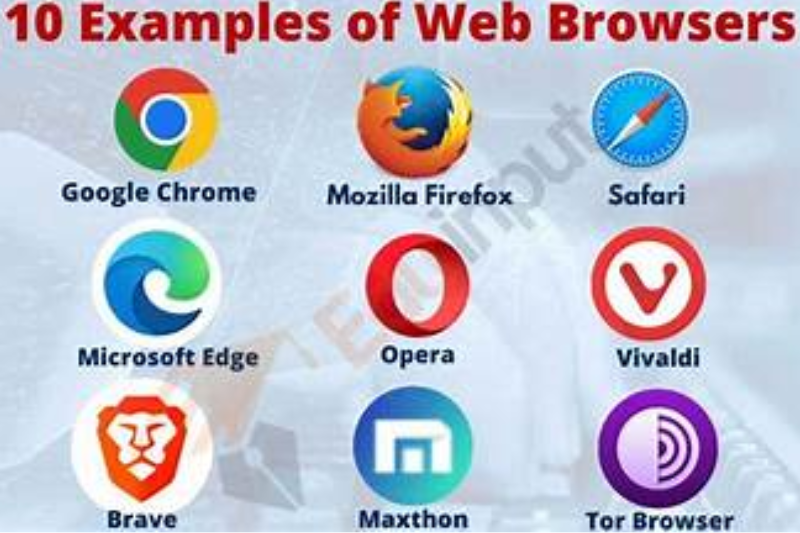
Your browser is your gateway to the internet, so choosing the right one matters.
- Google Chrome
- Benefits: Super fast, supports thousands of extensions, excellent compatibility with websites.
- Drawbacks: Uses a lot of RAM; can slow down older PCs.
- Benefits: Super fast, supports thousands of extensions, excellent compatibility with websites.
- Mozilla Firefox
- Benefits: Privacy-focused, highly customizable, lightweight compared to Chrome.
- Drawbacks: Some websites perform slower on Firefox than Chrome.
- Benefits: Privacy-focused, highly customizable, lightweight compared to Chrome.
- Microsoft Edge
- Benefits: Built into Windows, fast, integrates well with Microsoft services.
- Drawbacks: Fewer extensions than Chrome or Firefox.
- Benefits: Built into Windows, fast, integrates well with Microsoft services.
Tip: Having at least two browsers installed is handy in case a website doesn’t load properly on one.
2. Antivirus and Security Software
Keeping your PC safe is non-negotiable. Even if Windows Defender works fine, extra protection can prevent headaches.
- Bitdefender
- Benefits: Lightweight, excellent malware detection, minimal performance impact.
- Drawbacks: Paid version needed for full features.
- Benefits: Lightweight, excellent malware detection, minimal performance impact.
- Malwarebytes
- Benefits: Great for scanning and removing malware/adware that traditional antivirus might miss.
- Drawbacks: Real-time protection in premium version only.
- Benefits: Great for scanning and removing malware/adware that traditional antivirus might miss.
- Avast Free Antivirus
- Benefits: Free, basic protection for everyday users.
- Drawbacks: Can prompt frequent notifications; some privacy concerns in the past.
- Benefits: Free, basic protection for everyday users.
Tip: Update antivirus software regularly and perform monthly scans to avoid threats.
3. Productivity Tools
These apps make your work or study life so much easier.
- Microsoft Office (Word, Excel, PowerPoint) or LibreOffice
- Benefits: Industry standard, feature-rich, compatible with most file formats.
- Drawbacks: Paid subscription for Microsoft Office; LibreOffice has slightly outdated interface.
- Benefits: Industry standard, feature-rich, compatible with most file formats.
- Notion or Evernote
- Benefits: Organizes notes, tasks, and projects; syncs across devices.
- Drawbacks: Can be overwhelming for beginners; requires internet for full features.
- Benefits: Organizes notes, tasks, and projects; syncs across devices.
- Adobe Acrobat Reader
- Benefits: Essential for reading PDFs, annotation, and basic editing.
- Drawbacks: Advanced PDF editing requires paid Adobe Acrobat Pro.
- Benefits: Essential for reading PDFs, annotation, and basic editing.
4. Communication Apps
Staying connected is important for both work and personal life.
- Zoom
- Benefits: Reliable video calls, widely used for work and online classes.
- Drawbacks: Free version limits meetings to 40 minutes.
- Benefits: Reliable video calls, widely used for work and online classes.
- Microsoft Teams or Slack
- Benefits: Excellent for team collaboration and file sharing.
- Drawbacks: Can be resource-heavy; may feel complicated for new users.
- Benefits: Excellent for team collaboration and file sharing.
- Discord
- Benefits: Free, great for gaming, communities, and casual chat.
- Drawbacks: Not ideal for professional work meetings.
- Benefits: Free, great for gaming, communities, and casual chat.
5. Media Players
Watching videos or listening to music requires versatile media apps.
- VLC Media Player
- Benefits: Plays almost any video/audio format; lightweight; free.
- Drawbacks: Interface can feel basic or outdated.
- Benefits: Plays almost any video/audio format; lightweight; free.
- Spotify
- Benefits: Huge music library, playlists, offline mode in premium version.
- Drawbacks: Free version has ads; premium costs monthly.
- Benefits: Huge music library, playlists, offline mode in premium version.
- KMPlayer
- Benefits: Supports 3D/4K videos, customizable interface.
- Drawbacks: Sometimes bundled with bloatware during installation.
- Benefits: Supports 3D/4K videos, customizable interface.
6. File Compression and Storage Tools
Handling large files or backups is easier with these apps.
- 7-Zip
- Benefits: Free, lightweight, supports almost all compression formats.
- Drawbacks: Interface is basic and not very user-friendly.
- Benefits: Free, lightweight, supports almost all compression formats.
- WinRAR
- Benefits: Easy to use, widely supported, supports multiple formats.
- Drawbacks: Paid after trial; free version nags with pop-ups.
- Benefits: Easy to use, widely supported, supports multiple formats.
- Dropbox or Google Drive
- Benefits: Cloud backup, easy file sharing, access from multiple devices.
- Drawbacks: Free storage is limited; requires internet to sync files.
- Benefits: Cloud backup, easy file sharing, access from multiple devices.
Tip: Cloud storage is essential for backing up important files in case your PC crashes.
7. System Optimization Tools
Keep your PC running smoothly with a little maintenance.
- CCleaner
- Benefits: Cleans junk files, manages startup programs, improves performance.
- Drawbacks: Overuse can delete important files; some features are paid.
- Benefits: Cleans junk files, manages startup programs, improves performance.
- Speccy
- Benefits: Monitors PC hardware, helps troubleshoot issues.
- Drawbacks: Limited functionality beyond monitoring.
- Benefits: Monitors PC hardware, helps troubleshoot issues.
- Defraggler
- Benefits: Optimizes HDD performance, easy to use.
- Drawbacks: Mostly useful only for traditional hard drives; SSDs don’t benefit much.
- Benefits: Optimizes HDD performance, easy to use.
8. Creative Software
Perfect for photo editing, video making, or design projects.
- Adobe Photoshop
- Benefits: Industry standard for photo editing, tons of features.
- Drawbacks: Expensive, steep learning curve.
- Benefits: Industry standard for photo editing, tons of features.
- GIMP
- Benefits: Free, similar to Photoshop, open-source.
- Drawbacks: Interface is less intuitive; fewer advanced features.
- Benefits: Free, similar to Photoshop, open-source.
- DaVinci Resolve
- Benefits: Professional-grade video editing, free version available.
- Drawbacks: Requires a powerful PC; complex for beginners.
- Benefits: Professional-grade video editing, free version available.
9. Browser Extensions and Utilities
Small tools can make a big difference online.
- Grammarly
- Benefits: Corrects grammar/spelling in real-time, improves writing.
- Drawbacks: Free version limited; can sometimes flag correct text incorrectly.
- Benefits: Corrects grammar/spelling in real-time, improves writing.
- LastPass
- Benefits: Secure password manager, autofills logins, generates strong passwords.
- Drawbacks: Free version limited to one device type; security breach history.
- Benefits: Secure password manager, autofills logins, generates strong passwords.
- Honey
- Benefits: Automatically finds coupons and deals while shopping.
- Drawbacks: Only works on supported websites; minor privacy concerns.
- Benefits: Automatically finds coupons and deals while shopping.
You may also like to read these posts:
advanced future technology tools
Mobile Performance Tips: The Complete, Friendly Guide to a Faster Phone
Smartphone Buyer Guide: A Complete, Detailed, User-Friendly Guide
Best Budget Phones Review – A Complete, Detailed and User-Friendly Guide
10. Backup and Recovery Tools
Data loss is stressful, so always have a backup plan.
- Acronis True Image
- Benefits: Full system backups, cloud option, ransomware protection.
- Drawbacks: Paid software; heavy on storage.
- Benefits: Full system backups, cloud option, ransomware protection.
- Macrium Reflect
- Benefits: Free version available, reliable disk imaging.
- Drawbacks: Slightly complex for beginners.
- Benefits: Free version available, reliable disk imaging.
- Windows Backup & Restore
- Benefits: Built-in, easy to use, no extra download required.
- Drawbacks: Limited advanced features.
- Benefits: Built-in, easy to use, no extra download required.
Final Thoughts
This essential PC apps list covers everything from browsing and security to productivity, communication, creativity, and system maintenance.
Key Takeaways:
- Benefits: Boosts productivity, keeps your PC safe, organizes your digital life, and allows creativity.
- Drawbacks: Some apps can be heavy on resources, paid versions might be required for full features, and too many apps can clutter your PC.
The goal is quality over quantity—pick apps that match your needs. With this list, your PC will be faster, smarter, and more secure.
FAQs
1. What are essential PC apps?
Essential PC apps are software programs that improve your computer’s productivity, security, and usability, such as browsers, antivirus, media players, and creative tools.
2. Why do I need an essential PC apps list?
An essential PC apps list helps you know which software is important for daily tasks, keeping your PC safe, organized, and running smoothly.
3. Which web browser should I choose for my PC?
Google Chrome is fast and feature-rich, Firefox is privacy-focused, and Microsoft Edge integrates well with Windows. Having more than one browser is often helpful.
4. What antivirus software is recommended for PC?
Bitdefender, Malwarebytes, and Avast are popular options. They protect your PC from malware, viruses, and other online threats.
5. Are there free alternatives to paid productivity software?
Yes! LibreOffice is a free alternative to Microsoft Office, and GIMP is a free alternative to Photoshop.