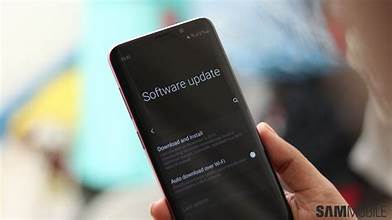

If you’ve ever seen that notification on your phone saying a software update is available and wondered whether to install it immediately or postpone it, you’re not alone. Many users hesitate, unsure if the update is really necessary or if it might cause problems. This Mobile Software Update Guide will walk you through everything you need to know about software updates on your mobile device, including how to prepare, install, and troubleshoot them, as well as their benefits and potential drawbacks.
What Are Mobile Software Updates?
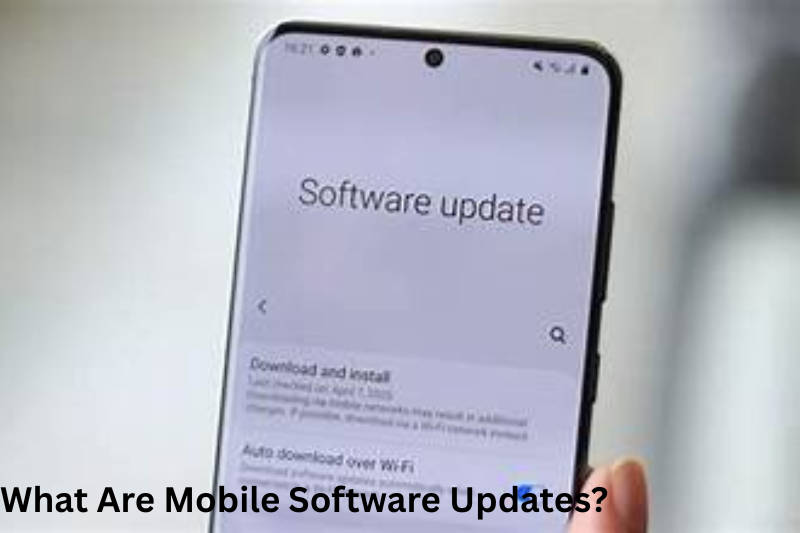
Mobile software updates are improvements released by your device manufacturer or operating system provider. These updates can include bug fixes, security patches, performance improvements, and even new features. Think of updates as maintenance for your phone’s operating system—similar to updating software on your computer.
These updates are crucial for ensuring your phone runs efficiently and stays compatible with apps and new technologies.
Why Mobile Software Updates Are Important
There are several reasons you should keep your mobile software up to date:
1. Security
Mobile devices store sensitive personal information, including passwords, banking apps, and private messages. Cybercriminals constantly exploit vulnerabilities in older software. Updates often include security patches that close these vulnerabilities and protect your personal data.
2. Performance Improvements
Over time, phones can slow down due to bugs or inefficient code. Updates often optimize system performance, making your device faster, smoother, and more stable.
3. New Features
Software updates sometimes bring exciting new features, such as redesigned interfaces, improved camera functionality, or productivity tools that enhance your experience.
4. App Compatibility
App developers frequently design apps for the latest versions of operating systems. Without updating your mobile software, some apps may stop working properly or fail to launch.
5. Bug Fixes
Even well-tested software can have bugs. Updates often address known issues that may be causing crashes, freezes, or unexpected behavior.
Benefits of Mobile Software Updates
Here are the key advantages of keeping your mobile device updated:
- Enhanced Security – Protects your device from malware, hackers, and other threats.
- Better System Performance – Optimizes speed, memory usage, and battery life.
- Access to New Features – Offers new tools, interface improvements, and added functionality.
- Improved App Compatibility – Ensures all apps run smoothly and receive full support.
- Longer Device Lifespan – Properly maintained devices last longer and stay reliable.
Drawbacks of Mobile Software Updates
While updates are mostly beneficial, there are a few potential drawbacks to consider:
- Temporary Slower Performance – After an update, the system may take some time to optimize, which can temporarily slow down the device.
- Battery Drain – Updates can initially cause higher battery usage as new features and background processes adjust.
- Storage Space Issues – Updates require storage, and low-space devices may face difficulties downloading or installing them.
- Compatibility Issues – Rarely, updates can create compatibility problems with older apps or accessories.
- Potential Bugs – Some updates may introduce new bugs or glitches, although these are typically fixed in subsequent patches.
How to Prepare for a Mobile Software Update
Before installing an update, it’s important to prepare your device to ensure a smooth process:
- Back Up Your Data
Backing up your data ensures you don’t lose important information if something goes wrong.
- iPhone: Settings → Apple ID → iCloud → iCloud Backup
- Android: Settings → Google → Backup
- iPhone: Settings → Apple ID → iCloud → iCloud Backup
- Charge Your Device
Make sure your phone has at least 50% battery. Updates can take time and drain power. - Connect to Wi-Fi
Updates often have large file sizes. Using Wi-Fi ensures a faster and more stable download without consuming mobile data. - Check Available Storage
Ensure there’s enough free space for the update. Delete unnecessary files, apps, or media if needed. - Review Update Notes
Most updates include release notes that explain new features, bug fixes, and known issues. Reviewing these can help you understand what’s changing.
How to Update Your Mobile Software
Here’s a step-by-step guide for updating both iPhone and Android devices:
For iPhone Users
- Open Settings
- Tap General
- Tap Software Update
- If an update is available, tap Download and Install
- Enter your passcode if prompted
- Wait for the installation to complete; your phone will restart automatically
For Android Users
(Note: Android menus may vary by manufacturer.)
- Open Settings
- Scroll to System or About Phone
- Tap Software Update or System Update
- Select Download and Install
- Follow the on-screen instructions
- Your device will restart automatically after the update
Common Problems and Solutions
Even with careful preparation, you may encounter issues during a software update. Here’s how to handle them:
Update Not Available
- Restart your phone
- Connect to a stable Wi-Fi network
- Ensure your device is still supported by the manufacturer
Not Enough Storage
- Delete unused apps
- Clear cached files
- Transfer photos and videos to cloud storage
Slow Download or Installation
- Switch to a stronger Wi-Fi network
- Restart your device and try again
Post-Update Issues
- Restart your phone
- Monitor battery usage for the first 24–48 hours
- Reset settings if persistent problems occur
You may also like to read these posts:
advanced future technology tools
Mobile Performance Tips: The Complete, Friendly Guide to a Faster Phone
Smartphone Buyer Guide: A Complete, Detailed, User-Friendly Guide
Best Budget Phones Review – A Complete, Detailed and User-Friendly Guide
Best Practices After Updating

- Explore the new features and settings introduced in the update.
- Update your apps to ensure full compatibility.
- Monitor your battery performance and system stability for the first day or two.
- Avoid uninstalling critical system updates unless absolutely necessary.
How Often Should You Update Your Mobile Software?
Most devices allow automatic updates. If you prefer manual updates:
- Check for updates once every 2–4 weeks.
- Install updates promptly to maintain security and performance.
Keeping your device updated ensures that it functions efficiently, stays secure, and remains compatible with apps and services.
Conclusion
This Mobile Software Update Guide highlights why software updates are essential for your device’s security, performance, and functionality. While updates can sometimes cause temporary issues, the long-term benefits far outweigh the drawbacks. By following this guide, you can confidently update your device, protect your data, and enjoy the best performance and features your mobile phone has to offer.
FAQs
1. What is a mobile software update?
A mobile software update is an official upgrade released by your phone’s manufacturer or operating system provider. It can include security patches, bug fixes, performance improvements, and new features to enhance your device’s functionality.
2. Why should I update my mobile software?
Updating your mobile software helps protect your phone from security threats, improves performance, fixes bugs, adds new features, and ensures that apps run smoothly on your device.
3. Will updating my phone erase my data?
No, a standard software update does not erase your data. However, it is always recommended to back up your important files, contacts, and media before updating, just in case something goes wrong during the installation process.
4. How often should I update my phone?
It’s best to install updates as soon as they are available. If you prefer manual updates, checking for updates every 2–4 weeks ensures your device remains secure and performs well.
5. Can a software update slow down my phone?
Sometimes, after installing a major update, your phone may temporarily slow down as the system optimizes new features and processes. This usually improves after a day or two.