

Technology can sometimes feel overwhelming, especially if you’re not a tech expert. That’s why a simple tech how to guide is so helpful—it breaks down everyday tasks into easy, step-by-step instructions that anyone can follow. Whether you’re setting up a new smartphone, backing up important files, boosting your Wi-Fi, or securing your devices, this guide is designed to make tech simple, approachable, and stress-free. Think of it as having a patient friend walking you through each process so you can feel confident and in control.
Let’s get started
1. How to Set Up a New Smartphone (Stress-Free)
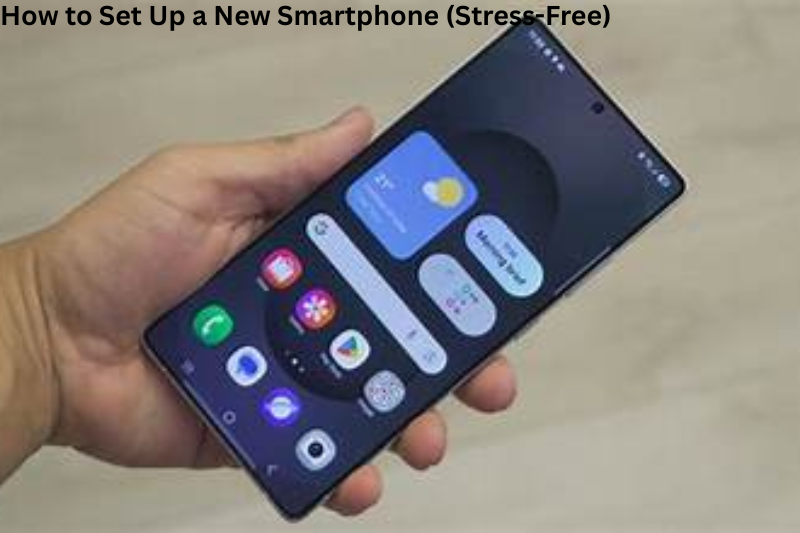
Getting a new phone is exciting, but the setup process can feel overwhelming. This section breaks it down into small, easy steps.
Step-by-Step Setup Process
1. Turn on the device
Hold the power button until the screen lights up.
2. Connect to Wi-Fi
You’ll save mobile data and make setup faster.
3. Sign in with your account
- Android: Google account
- iPhone: Apple ID
Your account allows your phone to restore apps, photos, contacts, and settings.
4. Transfer your data
Phones today offer simple ways to copy content from your old device:
- QR-code transfers
- Cable transfers
- Cloud backup restores
Just follow the guided prompts on the screen.
5. Install software updates
These updates keep your phone secure and running smoothly.
Benefits
- Fast and automatic setup with cloud restores.
- Less manual work—your apps and data return as you left them.
- Better security when updating immediately.
Drawbacks
- Requires good Wi-Fi for smooth setup.
- Takes longer if you have a lot of photos or videos.
- Some old apps or system settings may not transfer perfectly.
2. How to Back Up Important Files (Protect Your Memories and Work)
No matter how careful we are, devices fail. Backups save you from losing important photos, documents, and memories.
Two Easy Backup Methods
Option 1: Cloud Backups
Cloud services let you store your files online and access them anywhere.
How to do it:
- Open Google Drive, iCloud, Dropbox, or OneDrive.
- Sign in.
- Tap Upload and choose your files.
- Make sure auto-backup is turned ON if the service supports it.
Option 2: External Drive Backups
Perfect for people who prefer offline storage.
How to do it:
- Plug your USB drive or external hard drive into your computer.
- Open your file folders.
- Drag and drop the items you want to keep safe.
Benefits
- Cloud backups allow access from anywhere.
- External drives offer complete privacy (no internet needed).
- Backups save you from accidental deletion or device failure.
Drawbacks
- Cloud storage may require a monthly fee for large amounts of data.
- External drives can break or get lost.
- Uploading large files can be slow on weak Wi-Fi.
3. Boost Your Home Wi-Fi Speed (Easy Fixes Anyone Can Do)
Slow Wi-Fi is frustrating, but most causes are simple to fix.
Try These Wi-Fi Boosting Tips:
- Put your router in a central, open location.
- Keep it off the floor and away from thick walls.
- Restart it once per week.
- Limit the number of connected devices.
- Update your router’s firmware.
Benefits
- Improved connection for streaming, gaming, and browsing.
- Easy fixes don’t require technical skills.
- Restarting and repositioning the router is completely free.
Drawbacks
- If the issue is with your internet provider, you can’t fix it yourself.
- Older routers may not support high speeds.
- Large homes may still have dead zones without Wi-Fi extenders.
4. Staying Safe Online (Simple Security for Everyday Users)
Online safety doesn’t have to be complicated. Small habits go a long way.
Basic Security Tips
- Use unique, strong passwords for each account.
- Enable two-factor authentication (2FA).
- Avoid clicking suspicious links.
- Keep your device and apps updated.
- Only download apps from official stores (App Store, Google Play).
Benefits
- Strong protection against hackers and phishing.
- Updates patch vulnerabilities automatically.
- 2FA makes your account much harder to break into.
Drawbacks
- Extra sign-in steps may feel slow at first.
- Too many passwords can be tough to remember (password managers help).
- Some security features may block older apps or devices.
5. How to Take Screenshots on Any Device
Screenshots make it easy to save information, share a problem, or capture a moment on screen.
Quick Screenshot Shortcuts
Windows:
Windows + Shift + S
Mac:
Command + Shift + 4
iPhone:
Power + Volume Up
Android:
Power + Volume Down
Benefits
- Saves important info instantly.
- Great for troubleshooting or sharing instructions.
- Works on all modern devices.
Drawbacks
- Shortcut combinations vary by device model.
- Hard to capture long pages without scrolling screenshots.
- Screenshots take up storage if not cleaned regularly.
You may also like to read these posts:
New Futuristic Tech Devices: A Deep Dive Into the Tech Changing Our Future
Next Generation Tech Ideas: A Detailed Look at the Future of Innovation
advanced future technology tools
Mobile Performance Tips: The Complete, Friendly Guide to a Faster Phone
6. How to Free Up Device Storage (Without Losing Anything Important)
Low storage slows your device and stops you from taking new photos or installing apps.
Easy Ways to Free Space
- Delete duplicate photos
- Clear browser and app cache
- Remove unused apps
- Move large videos to the cloud
- Empty the “Recently Deleted” folder
Benefits
- Speeds up your device.
- Creates space for new apps, photos, and updates.
- Cloud storage ensures you don’t lose memories.
Drawbacks
- Can be time-consuming if you have thousands of files.
- Some apps may re-download data later.
- Cloud options may require a paid plan for large storage.
Final Thoughts
This simple tech how-to guide is designed to help you feel confident with everyday technology. Whether you’re setting up a new device, improving Wi-Fi, securing your data, or cleaning your storage, the key is to take things step by step.
FAQs
1. What is a simple tech how-to guide?
A simple tech how-to guide is a step-by-step explanation that helps you complete tech-related tasks without confusion. It focuses on clarity, simplicity, and practical instructions rather than complicated jargon.
2. Who can benefit from this guide?
Anyone! Whether you’re a beginner with smartphones, computers, or home tech, or just someone who wants to save time, a simple tech guide makes tech tasks easier and less stressful.
3. Do I need prior technical knowledge?
Not at all! This guide is designed for beginners. Each step is explained clearly, so you can follow along even if you’re not tech-savvy.
4. Are cloud backups safe?
Yes! Services like Google Drive, iCloud, and Dropbox encrypt your data, making it secure. However, always use a strong password and enable two-factor authentication for extra protection.
5. How often should I back up my files?
It’s best to back up weekly or monthly, depending on how often you create or change important files. Cloud services can also automatically back up your data daily.