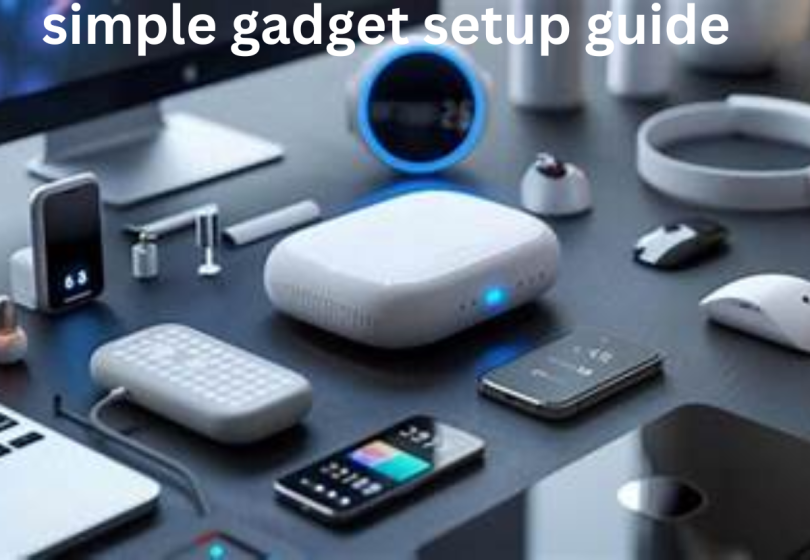

Setting up a new gadget should feel exciting—not confusing or overwhelming. Whether you’ve bought a new smartphone, smartwatch, earbuds, tablet, smart speaker, or any other tech device, having a simple gadget setup guide makes the whole experience smoother and more enjoyable.
In this article, I’ll walk you through every essential step in detail. I’ll also share the benefits and drawbacks of using a simple setup guide so you know exactly what to expect. Think of this as a friend helping you unbox and prepare your new gadget—calm, clear, and stress-free.
Let’s jump right in!
1. Unboxing the Gadget: What You Should Do First
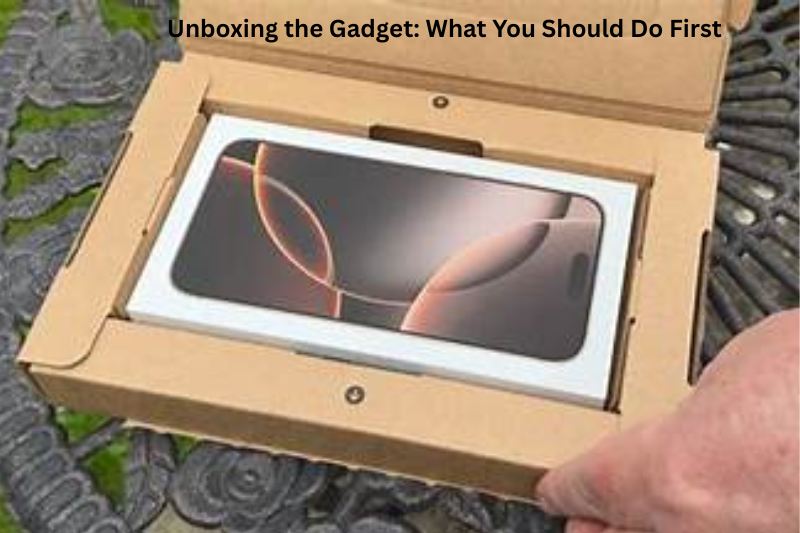
Before rushing to turn your device on, slow down and do a proper check.
A careful unboxing helps avoid problems later.
What to Look For
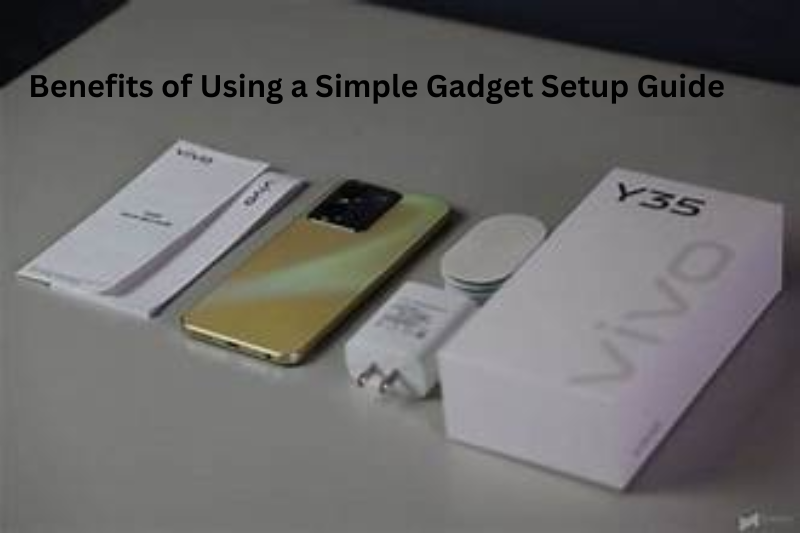
Inside your box, you’ll usually find:
- The gadget itself
- Charging cable and adapter
- Setup instructions / quick-start guide
- Warranty card
- Additional accessories (band, case, extra earbuds, mounts, etc.)
Make sure everything matches the list in the manual so you don’t discover a missing cable when you need it most.
Why This Step Matters
A missing accessory might prevent setup, delay use, or cause unnecessary back-and-forth with customer support.
2. Fully Charge the Device Before Starting Setup
Many people skip this—but charging your gadget fully before your first use is extremely helpful.
Why Full Charging Helps
- Ensures the device doesn’t turn off during setup
- Helps the battery calibrate properly
- Reduces long-term battery damage
- Lets you complete updates without interruptions
For gadgets like smartwatches, tablets, or wireless headphones, expect the first charge to take around 1–2 hours.
3. Power On Your Gadget and Start the Initial Setup
Once charged, power up the device. Most gadgets guide you through a few basic steps.
Common Setup Steps
- Choose language
- Select your region or time zone
- Connect to Wi-Fi
- Sign in or create an account
- Accept terms and conditions
- Choose privacy and data-sharing preferences
Tips
- Use “Skip” when you’re unsure—you can always change things later.
- Keep your Wi-Fi password nearby to avoid re-typing.
This stage is smooth for most users, but having patience helps. Some screens can take a moment to load.
4. Connect the Gadget to Wi-Fi or Bluetooth
Connection is a crucial part of this simple gadget setup guide because many devices depend on it.
Wi-Fi Connection Steps
- Open Wi-Fi settings
- Select your home network
- Enter your password
- Wait for confirmation
Tip: If the Wi-Fi doesn’t connect, restart your router or the device.
Bluetooth Connection Steps
This is common for:
- Earbuds
- Smartwatches
- Speakers
- Game controllers
How to Pair:
- Turn on Bluetooth on your phone or computer
- Put the gadget in pairing mode (often by holding a button for 3–5 seconds)
- Select the device when it appears in your list
5. Update Your Device Software
Many gadgets require you to update firmware or software after the first boot.
Why Updates Are Important
- Improve performance
- Fix bugs
- Add new features
- Enhance security
- Increase compatibility with other apps
Make sure the device is charged or plugged in during updates—they can take anywhere from 5–30 minutes depending on the model.
6. Customize Your Gadget to Match Your Preferences
Now comes the personal touch.
This is the step where your gadget starts feeling like it belongs to you.
Things You Can Customize
- Brightness settings
- Wallpaper or themes
- Sounds and notifications
- Privacy settings
- Accessibility features (big text, screen readers, color contrast)
- App settings
Why Customization Matters
A gadget that fits your lifestyle is easier to use and far more enjoyable.
7. Install Companion Apps (If Required)
Some gadgets need a companion app for full functionality.
Gadgets that Typically Need an App
- Smartwatches
- Fitness trackers
- Drones
- Smart cameras
- Smart home devices
- Robot vacuums
Companion App Benefits
- Advanced settings
- Firmware updates
- Health tracking
- Notifications
- Remote control abilities
Simply search the official brand’s name in the app store and install it.
8. Test the Gadget to Make Sure Everything Works
Before celebrating, give your device a quick test run.
What You Should Check
- Touch response / button functionality
- Speaker or microphone quality
- Wireless stability
- Camera clarity (if available)
- Battery drain during first use
Catching issues early helps you return or exchange the device without hassle.
9. Long-Term Care Tips to Keep Your Gadget in Great Shape
Following a few simple habits can extend your gadget’s life.
Maintenance Tips
- Avoid exposing it to heat or moisture
- Use a case or screen protector
- Update it regularly
- Clean with a microfiber cloth
- Store cables neatly
- Restart the device occasionally to keep it running smoothly
You may also like to read these posts:
New Futuristic Tech Devices: A Deep Dive Into the Tech Changing Our Future
Next Generation Tech Ideas: A Detailed Look at the Future of Innovation
advanced future technology tools
Mobile Performance Tips: The Complete, Friendly Guide to a Faster Phone
Benefits of Using a Simple Gadget Setup Guide
Here are the major advantages of following a guide like this:
- Saves Time and Reduces Confusion – You avoid guessing what to do next.
- Prevents Setup Errors – Skipping steps may cause issues later; this guide keeps you on track.
- Improves Device Performance – Charging fully and updating software early helps your gadget work better.
- Increases Security – Proper setup ensures your accounts, passwords, and permissions are safe.
- Makes You Confident in Using the Gadget – Understanding your device from the start builds confidence.
- Helps You Discover Hidden Features – Many people miss useful features because they rush setup.
- Extends Gadget Lifespan – Correct setup and care prevent problems that reduce the device’s life.
Drawbacks of a Simple Gadget Setup Guide
Even though helpful, there are a few limitations:
- Not All Gadgets Are the Same – Some steps may vary based on brand, model, or software version.
- Complex Devices May Require Advanced Guides – High-tech devices may need deeper instructions.
- Updates Can Change Setup Steps – After major software updates, the steps may look different.
- Some Users May Prefer Visual Instructions – Pictures or videos can help, while this guide is text-based.
- Requires Basic Tech Comfort – Users who struggle with smartphones or computers might still need hands-on help.
Final Thoughts
This simple gadget setup guide is designed to make your first experience with any new device easy, enjoyable, and stress-free. Whether you’re setting up a phone, smartwatch, earbuds, tablet, or smart home device, these steps will help you get the most out of your gadget from day one.
Following this guide carefully will save time, avoid errors, and make sure your gadget works exactly as it should.
FAQS
1. What is a simple gadget setup guide?
A simple gadget setup guide is a step-by-step instruction resource designed to help users get their new devices ready for use. It simplifies complex processes like charging, connecting to Wi-Fi or Bluetooth, software updates, and personalization so anyone can follow along easily.
2. Why is it important to follow a setup guide?
Following a setup guide helps prevent mistakes, ensures your device works correctly from the start, improves security, and lets you discover features you might otherwise miss. It also saves time and reduces frustration.
3. Can I skip some steps during setup?
Some steps, like customizing your settings, can be skipped and done later. However, essential steps such as connecting to Wi-Fi, signing in, or updating software should not be skipped, as they are crucial for proper device functionality.
4. How long does it take to set up a gadget?
Setup time varies depending on the device. Simple gadgets like earbuds or smart speakers may take 10–20 minutes, while smartphones, tablets, or smartwatches may take 30–60 minutes due to updates and account setup.
5. Do I need Wi-Fi for setup?
Most modern gadgets require Wi-Fi for updates, app installations, and account sign-ins. Some basic devices may allow offline setup, but functionality may be limited without an internet connection.