
Welcome! If you’re reading this, you’re probably looking for an easy computer basics guide that explains things in simple, everyday language. No complicated jargon, no confusing tech talk—just clear, friendly explanations.
Whether you’re new to computers, brushing up on skills, or helping someone else learn, this guide will walk you through the essentials step by step.
1. What Is a Computer? (Let’s Start Simple)
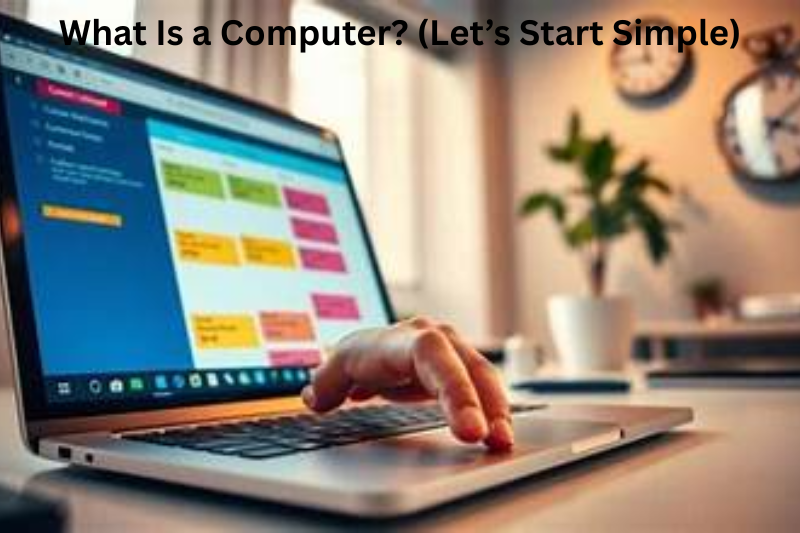
A computer is an electronic device that can store, process, and display information. Think of it as a super-fast assistant that follows your instructions.
You tell it what to do using the keyboard, mouse, touchscreen, or voice—and it does the work almost instantly.
There are many types of computers:
- Desktops – larger, stay in one place
- Laptops – portable and compact
- Tablets – touch-based and lightweight
- Smartphones – yes, they are mini-computers too
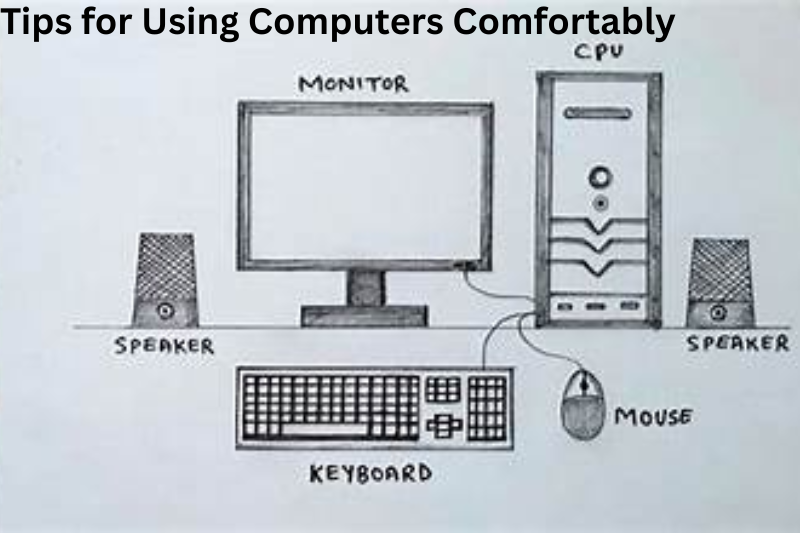
2. Basic Parts of a Computer
To continue our easy computer basics guide, let’s look at the main parts you’ll interact with.
A. Hardware (The Physical Stuff)
These are the things you can touch:
- Monitor – your screen (like a TV)
- Keyboard – used to type
- Mouse – used to point, click, and select
- CPU / System Unit – the “brain” of the computer
- Speakers – play sound
- Printer – produces physical copies of documents
B. Software (The Programs Inside)
Software is the digital part you can’t touch. It includes:
- Operating System (OS) – the main system that runs the computer (Windows, macOS, Linux, Android)
- Applications (Apps) – tools you use (browser, Word, games, music players)
Think of hardware as a body and software as a mind. Both need each other.
3. How to Start and Shut Down a Computer
This might sound basic—but everyone starts somewhere.
Starting the Computer
- Press the power button.
- Wait for the operating system to load.
- Enter your password or PIN (if set).
Shutting Down Safely
Always shut down properly—don’t just unplug.
- Click Start Menu → Power → Shut Down (Windows)
- Or Apple Menu → Shut Down (Mac)
This keeps your system healthy and prevents data loss.
4. Understanding the Desktop
Once your computer is on, you’ll see the desktop, your main workspace. It includes:
- Icons – shortcuts to apps or files
- Taskbar / Dock – quick access to frequently used programs
- Start Menu (Windows) – your main control center
- Wallpaper – the background image
Think of your desktop as your digital desk where all your tools and papers are within reach.
5. How to Use a Mouse (or Touchpad)
If you’re new, using a mouse or touchpad can feel tricky at first. Here’s a quick guide:
- Left Click – select or open
- Right Click – shows options
- Double Click – open files or programs
- Scroll Wheel – move up or down pages
- Drag and Drop – move items
On laptops, the touchpad works with finger gestures:
- One tap = click
- Two fingers = scroll
- Right corner = right click
6. Basic Computer Functions Every Beginner Should Know
A. Creating and Saving Files
- Open a program like Word or Notepad.
- Type your content.
- Click File → Save As.
- Choose where to save (Desktop, Documents).
- Name your file and save it.
B. Opening the Internet
To browse the web:
- Open a browser (Chrome, Firefox, Edge, Safari).
- Write your search in the address bar.
- Press Enter.
C. Copying and Pasting
A lifesaver skill!
- Copy: CTRL + C
- Paste: CTRL + V
- Cut: CTRL + X
7. Keeping Your Computer Safe
Even beginners need to know about safety.
A. Use Antivirus Software
This protects you from harmful files.
B. Avoid Suspicious Links
If you don’t trust it—don’t click it.
C. Update Your System
Updates fix bugs and improve security.
D. Use Strong Passwords
Mix letters, numbers, and symbols.
You may also like to read these posts:
New Futuristic Tech Devices: A Deep Dive Into the Tech Changing Our Future
Next Generation Tech Ideas: A Detailed Look at the Future of Innovation
advanced future technology tools
Mobile Performance Tips: The Complete, Friendly Guide to a Faster Phone
8. Tips for Using Computers Comfortably
- Sit with good posture.
- Take breaks every 20–30 minutes.
- Adjust screen brightness to reduce eye strain.
- Keep your keyboard and mouse clean.
9. Practice Makes You Confident
The best way to learn computers is simple: use them often.
The more you click, type, explore, and practice, the more comfortable everything becomes.
Don’t worry about making mistakes—everyone starts as a beginner, including tech experts today.
Conclusion: You’re Off to a Great Start!
This easy computer basics guide gives you the foundation you need to begin your computer journey. You now know what computers are, how they work, how to operate them, and how to stay safe online.
If you want, I can also help you with:
- Practice exercises
- Advanced guides for beginners
- Step-by-step photo tutorials
- A downloadable PDF version
FAQs
Q1: What is a computer in simple words?
A: A computer is an electronic device that can store, process, and display information. Think of it as a smart helper that follows your instructions to complete tasks.
Q2: Do I need prior knowledge to learn computer basics?
A: Not at all! This guide is designed for absolute beginners. You can start from scratch and learn step by step.
Q3: How long will it take to become comfortable with a computer?
A: Everyone learns at a different pace, but with regular practice, most beginners feel confident in a few weeks.
Q4: Do I need the internet to use a computer?
A: No. Many tasks, like writing documents, playing offline games, or watching downloaded videos, don’t require the internet.
Q5: What are the most important basic computer skills to learn first?
Turning the computer on and off safely
Using a mouse or touchpad
Opening and closing programs
Creating, saving, and organizing files
Basic internet browsing